
The Screen Recorder is a tool in the LanguageWire TMS that allows you to easily capture, preview, and share your screen activity. This means that, if you experience an issue and need support from LanguageWire, you can record the problem you are having and share it with us. This article covers where to find the tool, how it works, and how to ask for assistance.
Where to find the Screen Recorder
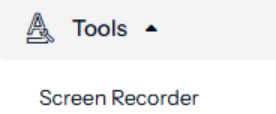
To access the Screen Recorder, log into the LanguageWire TMS and go to the Tools section. Select Screen Recorder. This will open the screen recorder in a new browser tab.
You can also access it directly at the following location: https://platform.languagewire.com/ScreenRecording/Recording
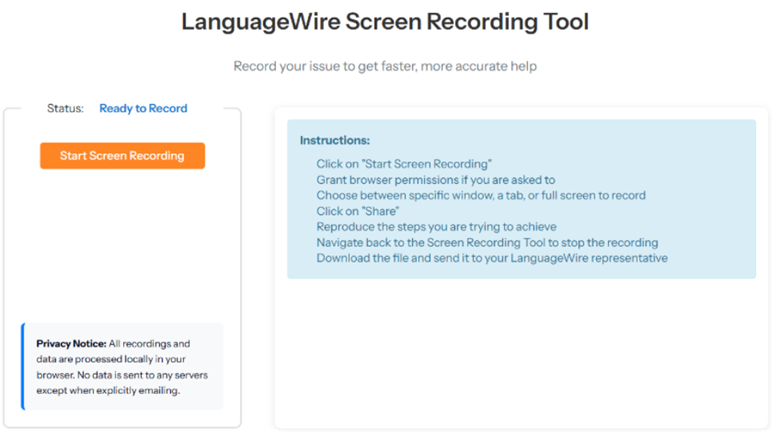
How to record your screen
- Click Start Screen Recording.
- Grant permissions: the browser will ask for permission to access your screen; you need to accept to proceed with the recording.
- Select the browser tab, window, or entire screen you would like to record before clicking Share.
- Tab: captures a single browser tab. This is the right choice if the issue you are having is occurring on one tab only. Only the browser tab you select will appear on the recording: the video will not show any other tabs, even if you switch to a different tab during the recording.
- Window: allows you to record different tabs in the same browser window. This is the best choice if you need to record multiple tabs. By selecting the browser window, the video will record any tab within the window that you navigate to during the recording.
- Entire screen: records all activity on the chosen monitor. This is the right option if you need to record multiple windows. If you have more than one screen, you are prompted to select one. Everything that appears on that screen will be recorded.
- Show the issue: reproduce your workflow or problem while recording. Demonstrate clearly by indicating with the cursor or highlighting text.
- Click Stop Sharing or Stop Recording to finish. You will see a preview of the recording.
Save or discard your recording
- Click Download Recording to save the file to your computer.
- If you want to discard the recording, click Discard Recording. You then have the option to start a new recording.
Share the recording and ask for support
To share a recording, send the downloaded screen recording file to your LanguageWire contact, or email helpdesk@languagewire.com to ask for assistance. The recording will help us understand your support request better.
Privacy
Recordings are processed and saved locally. No video is stored on the cloud or LanguageWire servers until you explicitly share the recording.
Step-by-step video
Watch our quick step-by-step video: https://attendee.gotowebinar.com/recording/7780317352426730752